Newsletters — Mailchimp
Newsletter schedule
Daily newsletter — sent every weekday at 7.30am. Contains all articles published that day, plus a repromoted article.
Weekly newsletter — sent each Friday at 12pm or as close to as possible. Contains articles selected by the executive editors that have been published that week.
Monthly newsletter — sent on the last day of the month at 10.30am. Contains all long-form articles published during that month, split by section.
Learning newsletter — sent on the last Wednesday of the month at 10.30am. Contains all learning articles published during that month.
Breaking news newsletter — sent when a breaking news is published. The news editors will let production know when a story is classed as breaking news.
If any of the newsletters clash under these plans and would be sent out at the same time, they are rescheduled as necessary.
Daily newsletter
Use the ‘newsletter’ Slack channel to source the articles for the daily newsletter. We usually lead with the main news story of the day, followed by any other news and then the long-form article that was published that day.
Open the newsletter template or replicate a previous daily newsletter template by clicking on the drop down to the right of it.
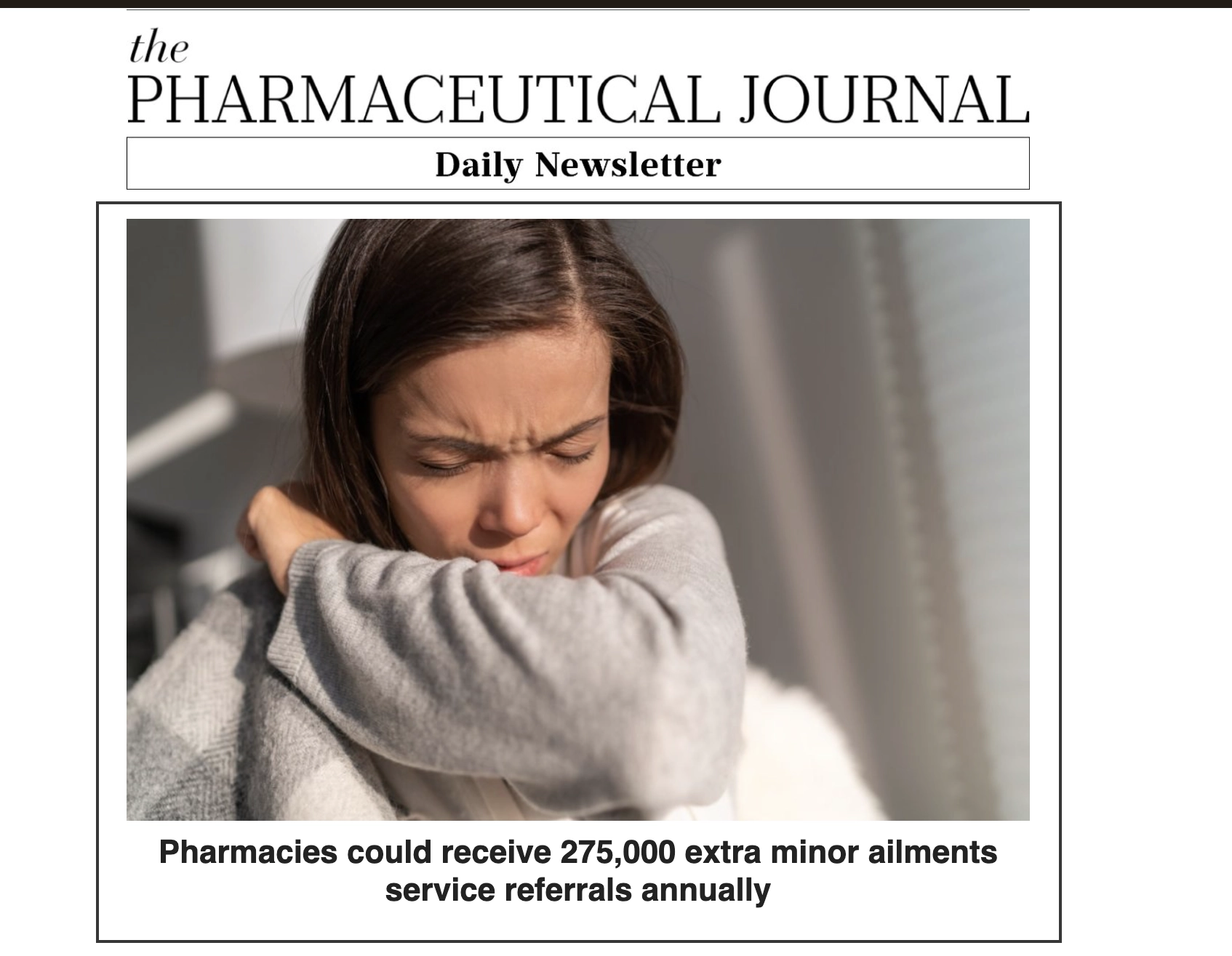
To add the lead article, open it on the website and screenshot the lead image. Open it in Photoshop and crop it to 1024px x 681px, then save it as a jpg.
Next, drag the cropped image into the picture space in the first box.
Click on the headline in the first box to open the ‘Image card’ editing box. Click on the ‘<>’ icon to change to HTML view.
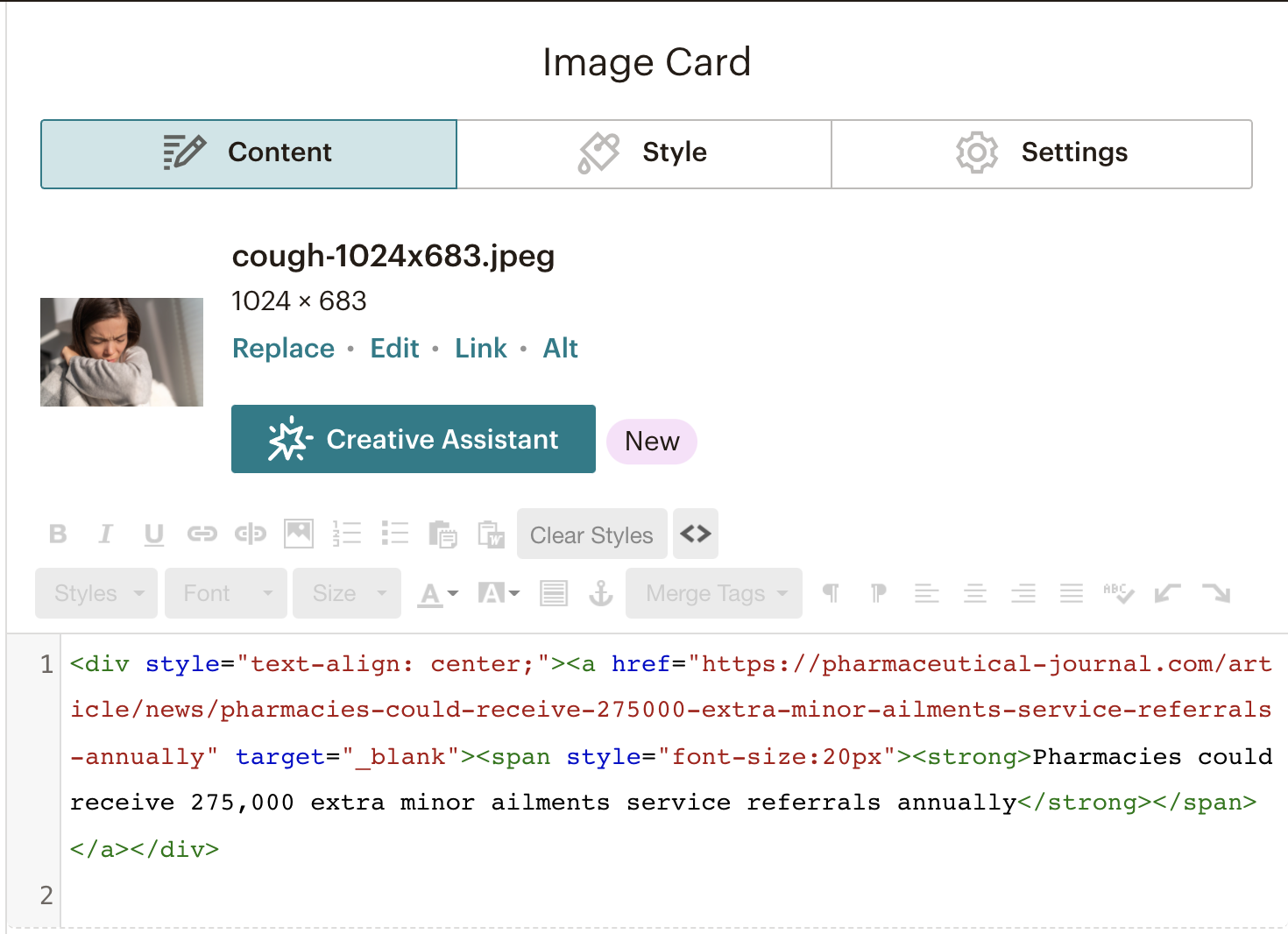
Copy the headline from the story and paste it in the headline spot (black text).
Copy the web address from the browser window and paste it in the hyperlink area (red text). Next to the picture, click on ‘Link’ and add the web address there too. This ensures that whether the user clicks on the image or the text, they will be directed to the relevant web page
The type of article should be included in the headline for long-form articles, followed by a colon. For example, ‘Learning: Management of venous thromboembolism in COVID-19’.
Repeat for the other articles, but without images. You can reorder the articles by dragging and dropping them.
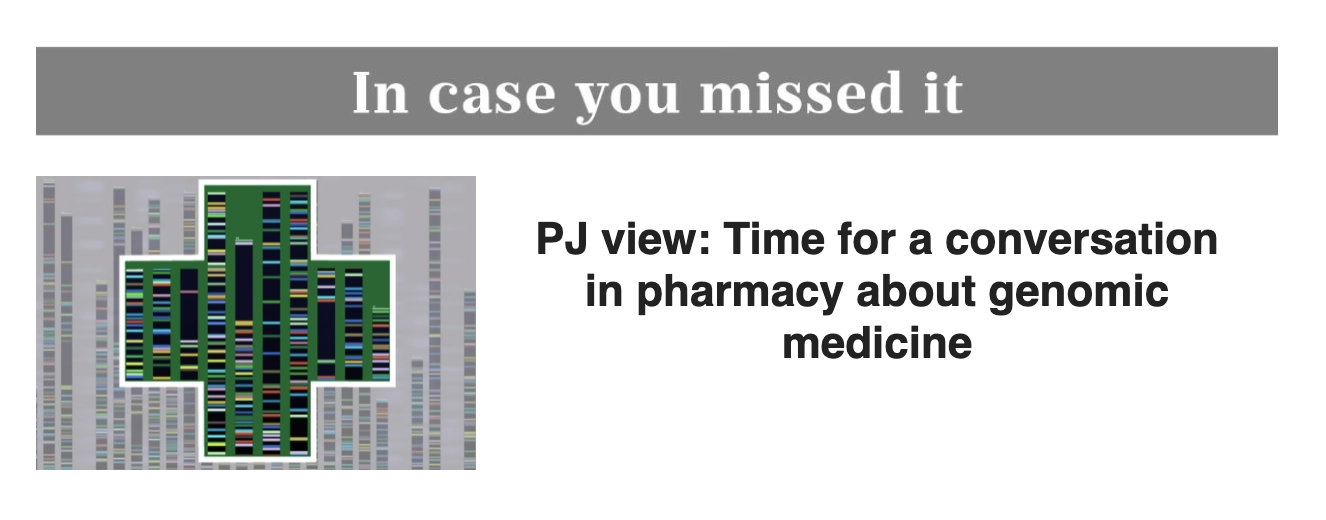
The ‘In case you missed it’ article can be one that has been published earlier in the week or from the previous week. The image can be cropped to either 1024 x 681 or 270px x 270px, depending on what works for the image.
Banners are added as an image and then linked in the same way as described above.
Once everything has been completed, click ‘Enter preview mode’ in the top right of the page. On this page you can preview the newsletter as it will display on a desktop or mobile. Check all the links work correctly. Exit the preview to make any required changes. Once you are happy with how everything looks, click ‘Save and Exit’ at the bottom right of the page.
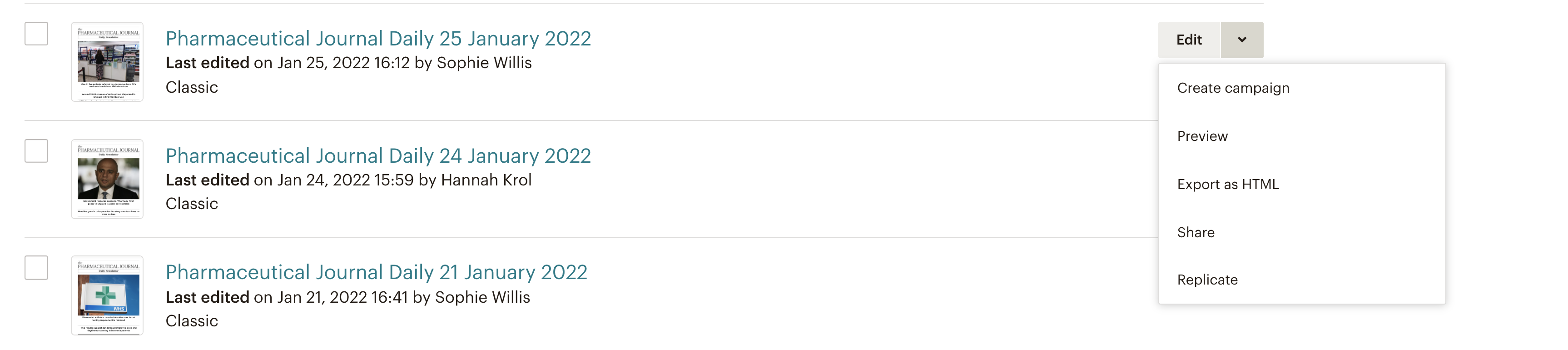
Once you’re happy, you need to create a campaign. On the ‘Templates’ page, click on the arrow on the right-hand side of your template, and click ‘Create campaign’.
From this page, all the details are added ready for the newsletter to be sent out. Add a name at the top (e.g. PJ Daily Newsletter date/month/year). Choose the correct mailing list to send it to (daily, weekly etc) and personalise the ‘To’ field to ‘first name/last name’. The ‘from’ section is automatically populated. The subject line is the title of the lead story, and the preview text should read ‘The Pharmaceutical Journal Daily Newsletter Date Month Year’. Once this is complete, you can send a test email by clicking on the link at the bottom.
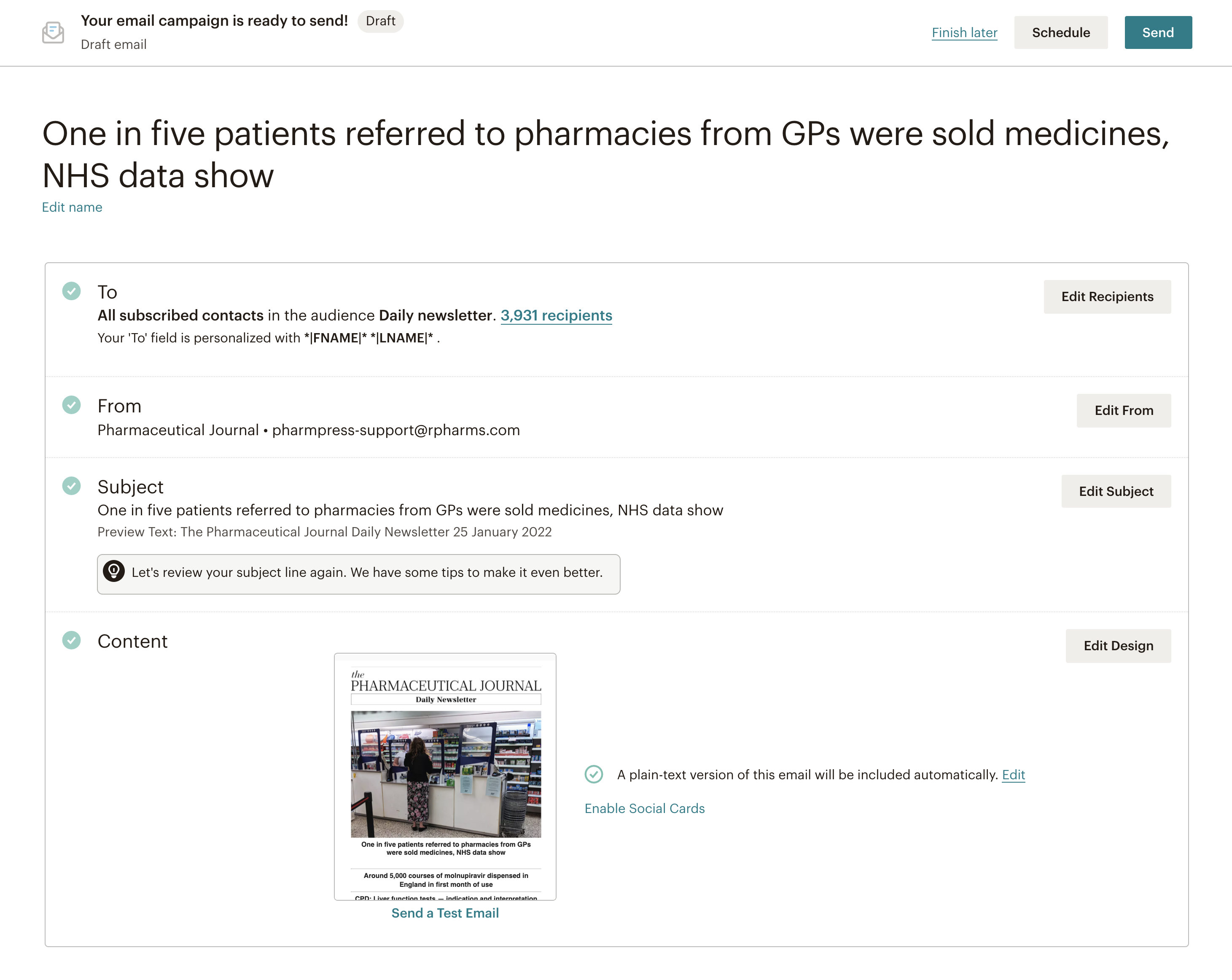
When the test has been sent, let people know in the Slack channel and ask for feedback by a particular time, if possible. The aim is to send out the daily newsletter before 5pm, and the deadline for news stories to be included is 3pm.
If changes are requested, click on ‘Edit Design’ and make these here. Bear in mind that these changes are only made to the campaign version and not to the template version of the newsletter.
Once everything is finalised and everyone has approved the newsletter via Slack, you are ready to send it out by clicking ‘Send’.
Weekly, monthly and learning newsletters
The content for the weekly, monthly and monthly learning newsletters is curated by the executive editors.
The campaign settings will be different depending on the newsletter, e.g. the weekly newsletter will be sent to the ‘Weekly newsletter’ audience.
The subject line for the weekly should start with ‘This week in the PJ:’, followed by a list of three topics that are discussed in articles from that week.
The subject line for the monthly should say ‘This month in The Pharmaceutical Journal: Month Year’
The subject line for learning should say ‘PJ: Learning & CPD Month Year Round-up’
The weekly and learning newsletters are scheduled to be sent out at a particular time by clicking ‘Schedule’ and setting a date and time.
Breaking news
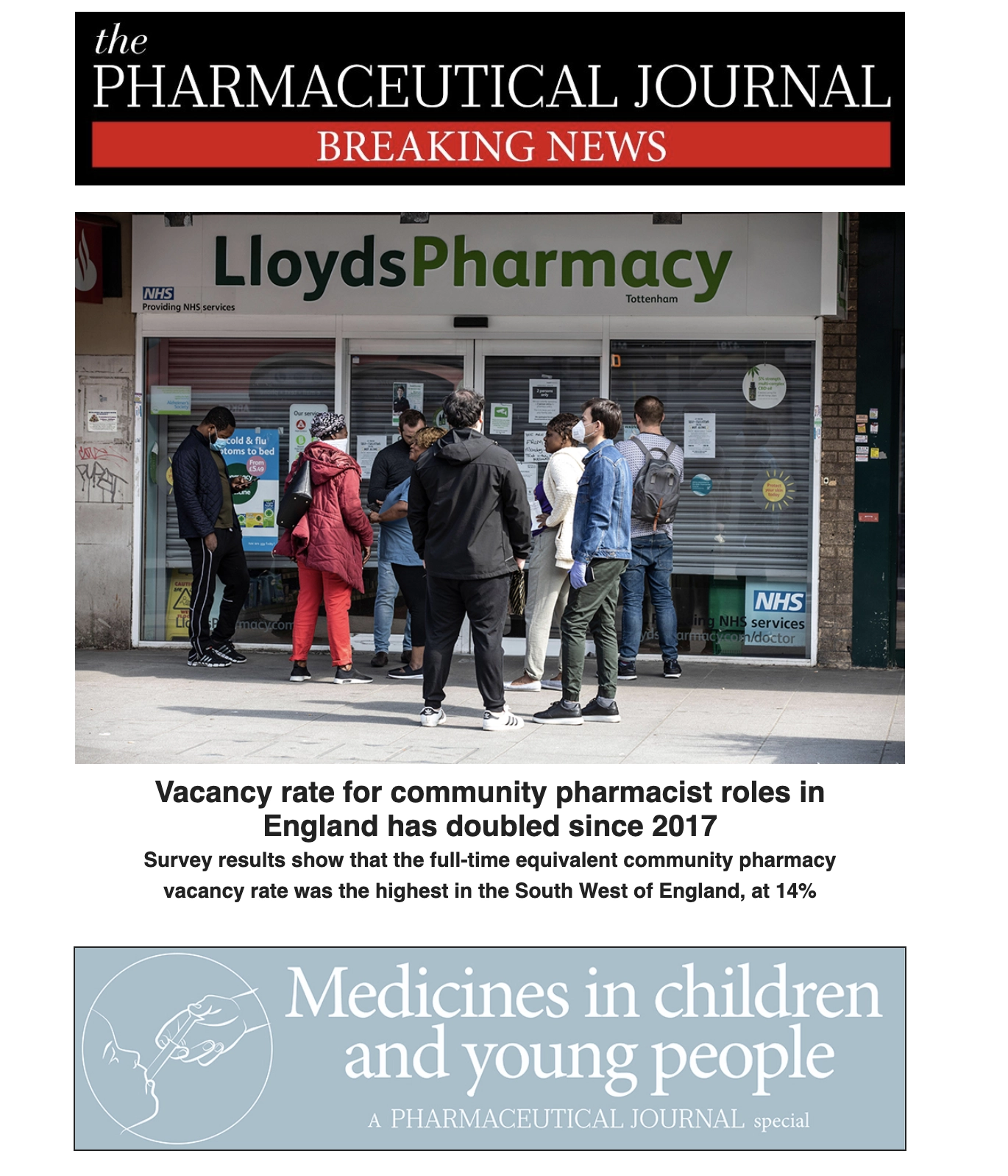
Breaking news is sent as soon as the news has been published. The subject line should start with ‘BREAKING NEWS:’ followed by the headline. The content should include the lead image from the story, the headline and the standfirst. There should be a banner at the bottom.